
On this page
The WordPress white screen of death is a blank page with no error message. It is usually a PHP error that WordPress could not display, a database error or, in the editor, a JavaScript error, and you find which by checking the page’s HTTP status code, its source and the error log, then switching off the plugin or theme they point to. This guide covers a blank front end, a blank wp-admin, one blank page and a blank editor. If your screen says “There has been a critical error on this website”, follow our critical error guide instead.
We build and maintain WordPress sites for businesses in Pakistan, and we make a free plugin conflict finder that reads WordPress error messages. The behavior below comes from WordPress core’s source code and WordPress.org’s documentation, so it applies on any host.
Why is the page blank instead of showing an error?
WordPress.org’s common errors guide says both PHP errors and database errors can show up as a blank white screen. Since WordPress 5.2 a fatal PHP error normally produces the critical error message, but core’s fatal error handler stays silent in a few cases, and those are the blank pages people still see:
- The page had already started sending HTML. On public pages the handler only shows its message if nothing has been sent yet, so an error halfway through a template leaves a white or half-drawn page.
- Updates were being installed. The handler does nothing while WordPress is in maintenance mode, so a plugin that crashes during its own update can leave the update screen blank.
- It was not a PHP fatal error. WordPress only prints database errors when
WP_DEBUGis on, and a broken script in the editor fails in the browser, not on the server. - Code ended the request early. A plugin that stops the page with
exitordieproduces no error, so the page is blank and the log stays empty.
Errors inside wp-config.php run before the handler exists, which the critical error guide covers.
Where is the page blank?
Where the white screen appears narrows the cause before you open a single file:
| What you see | Likely cause | Check first |
|---|---|---|
| Whole site blank, wp-admin too | A plugin or theme failing on every request, or a crash during an update | Error log, then rename the plugins folder |
| Front end blank, wp-admin works | The theme, a plugin that runs only on public pages, or memory (see below) | Error log, then switch the theme |
| One page blank or cut off halfway | A shortcode, block or widget used on that page | Page source, then the error log |
| wp-admin blank, site works | A plugin’s admin screen, notice or dashboard widget | Error log, then rename that plugin |
| Login page blank | A plugin that changes the login form, such as a security or captcha plugin | Rename that plugin’s folder |
| Editor area blank in Posts or Pages | A JavaScript error from a plugin or theme | The browser console |
| Blank only for logged-out visitors | A cached copy of a broken page | Purge every cache |
| Blank right after moving host | A different PHP version or extension, or a leftover cache drop-in | Error log, then the PHP version |
On memory: WordPress asks for at least 40MB on the public pages of a single site but raises it to 256MB by default for administrators inside wp-admin, so a page that runs out of memory can be blank for visitors while the dashboard still works.
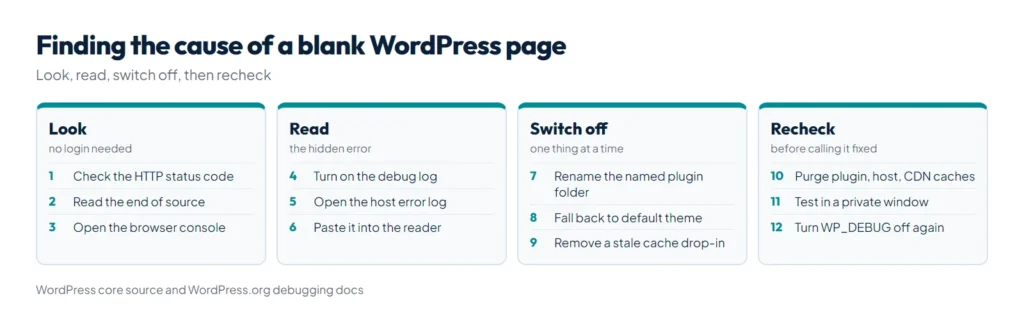
Step 1: check the status code and the page source
This takes two minutes and needs no login. In Chrome or Edge, press F12, open the Network tab, reload, and click the first request, which is the page itself. Or run this from any terminal:
curl -s -o /dev/null -w "%{http_code} %{size_download} bytes\n" https://example.com/| Result | What it means |
|---|---|
| 500 and 0 bytes | PHP stopped with an error before anything was shown. Go to step 2. |
| 200, and the source ends abruptly | The error hit after the page started. The last lines show which part was being built, such as the footer or a product grid. |
| 200, full source, but a white screen | The HTML arrived. Look for a CSS or JavaScript problem in the browser console. |
| 200 and 0 bytes | Code ended the request without an error, or a cache stored an empty page. |
To see the source, press Ctrl+U on the blank page and scroll to the bottom.
Step 2: find the hidden error in a log
Turn on WordPress’s debug log by adding these lines to wp-config.php, above “That’s all, stop editing!”. WordPress.org’s debugging guide notes that WP_DEBUG_LOG can take a file path as well as true, which lets you keep the log out of the public wp-content folder:
define( 'WP_DEBUG', true );
define( 'WP_DEBUG_LOG', '/home/youruser/logs/wp-errors.log' );
define( 'WP_DEBUG_DISPLAY', false );
Use a folder that exists and sits outside public_html, or set WP_DEBUG_LOG to true to write to wp-content/debug.log. Load the blank page again and look for lines starting PHP Fatal error or WordPress database error. The second kind only appears because WP_DEBUG is now on.
If that log stays empty, check your host’s log. In cPanel, Metrics > Errors shows up to 300 of the most recent entries from the web server’s error log, according to cPanel’s documentation. Errors in wp-config.php happen before WordPress can log anything, so look for those in the host’s log too.
Then paste the error into our free WordPress plugin conflict finder. Its “I have an error message” tab reads the file paths in the error and names the plugin or theme behind it, and it also accepts errors copied from the browser console.
Step 3: switch off what the log points to
- A plugin: in File Manager or over SFTP, rename its folder in
wp-content/plugins, for exampleslider-plugintoslider-plugin-off. If the log names nothing, rename the wholepluginsfolder, as WordPress.org’s guide suggests, then bring plugins back one at a time. The conflict finder’s guided search tells you which plugins to switch off each round. - The theme: rename the active theme’s folder in
wp-content/themes. WordPress falls back to a default theme such as Twenty Twenty-Five, if one is installed. - Memory: if the log says “Allowed memory size … exhausted”, add
define( 'WP_MEMORY_LIMIT', '256M' );towp-config.php. Your host’s PHPmemory_limitcaps it. - A leftover cache drop-in: when
WP_CACHEis true, WordPress loadswp-content/advanced-cache.phpearly in every request. A drop-in left behind by a caching plugin you removed, or copied from another server, can break every page. Rename the file or setWP_CACHEto false. - A PHP change: if the blank page started after a host move or a PHP switch, compare versions. Our guide to the right PHP version for WordPress shows what each upgrade tends to break.
- Purge every cache, from the caching plugin, the host and any CDN, then test in a private window.
How do you fix a blank block editor?
When the dashboard loads but the editing area of a post or page stays white, the problem is in the browser. WordPress.org’s guide to diagnosing JavaScript errors gives this order:
- Try another browser, or a private window with extensions off. Ad blockers and privacy tools can break scripts.
- Add
define( 'SCRIPT_DEBUG', true );towp-config.phpso WordPress loads unminified scripts, which give readable errors. - Press F12, open the Console tab, reload and copy the full error, including the file name and line.
- A file path through
/wp-content/plugins/plugin-name/names the plugin. Update it or switch it off, and paste the error into the conflict finder if the path is unclear.
Set SCRIPT_DEBUG back to false when you are done.
How do you stop it happening again?
- Update one plugin at a time, with a fresh backup. Our WordPress backup and restore guide shows how to take one you can actually restore.
- Test PHP changes and major plugin updates on a staging copy first.
- Switch the debug log off when you are not using it and delete old log files. WordPress.org recommends debug tools only for local and staging sites.
- Do not edit theme files from the dashboard on a live site.
WP Toolkit Studio helps with the update side: its auto-updates are off by default, and when you turn them on a full backup runs first and you can exclude any plugin you prefer to update by hand.
Summary
The WordPress white screen of death is an error you cannot see: usually a PHP fatal error that struck after the page started or during an update, a database error, or a JavaScript error in the editor. Check the status code and page source, turn on the debug log or read your host’s error log, and switch off the plugin, theme or cache drop-in it names. Paste any error into our free WordPress plugin conflict finder to have it name the culprit.
References
- Common WordPress errors, WordPress Developer Resources
- class-wp-fatal-error-handler.php, WordPress core source
- Debugging in WordPress, WordPress Developer Resources
- Editing wp-config.php, WordPress Developer Resources
- Using your browser to diagnose JavaScript errors, WordPress Developer Resources
- default-constants.php, WordPress core source
- Errors, cPanel documentation