
On this page
For WordPress backup and restore, save two parts at the same time: the database and the files, mainly wp-content and wp-config.php. Keep at least three copies with one away from your hosting account, and when you restore, put the files back first and then import the database. Test a restore on a copy before you need it, because a backup you have never restored is a guess.
We maintain WordPress sites for businesses in Pakistan and make WP Toolkit Studio, a WordPress security and backup plugin, so restoring sites is regular work for us. The steps below follow WordPress.org’s backup documentation, cPanel’s and Hostinger’s own help pages and CISA’s backup guidance. If you need a backup because the site was hacked, read our guide to cleaning a hacked WordPress site as well.
What does a WordPress backup need to include?
WordPress.org’s backup guide is clear that you need both parts. Backing up the files does not back up the database, because the database lives in MySQL or MariaDB, outside the WordPress folder.
| Part | What is in it | Back it up? |
|---|---|---|
| Database | Posts, pages, comments, users, settings and the data plugins store there | Always |
wp-content/uploads | Every image and file you uploaded | Always |
wp-content/themes and plugins | Your theme, child theme, custom and premium plugins | Always, because premium ones cannot be downloaded again from WordPress.org |
wp-config.php | Database connection details and security keys | Always, and store it privately |
.htaccess | Permalink and other server rules | Yes |
wp-admin and wp-includes | WordPress core | Optional, a fresh download replaces them |
Back up the database first and then the files, and keep the two together as one set, as WordPress.org recommends.
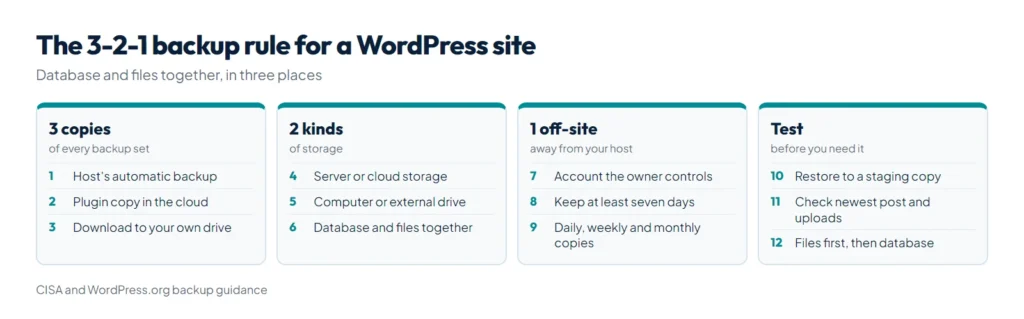
What is the 3-2-1 backup rule?
CISA, the US cybersecurity agency, describes the 3-2-1 rule as 3 copies of important files, on 2 different types of storage such as a hard drive and the cloud, with 1 copy stored off-site. It also advises being able to roll back at least seven days. For a WordPress site that means:
- Copy 1, at your host: the host’s automatic backups, or a plugin’s backup kept on the server.
- Copy 2, in cloud storage: Google Drive, Dropbox, OneDrive or S3-compatible storage, in an account the site owner controls, not the developer.
- Copy 3, on a drive you hold: a download to your own computer or an external drive, for example once a month and before big changes.
WordPress.org gives the same advice in its own words: keep at least three to five recent backups in different places, such as one on the server, one in cloud storage and one on your computer. Keep more than a week of copies, because problems are not always noticed on the day they start, and restoring a copy that already contains the problem does not help.
How often should you back up?
WordPress.org suggests weekly backups for smaller sites, daily backups for busy ones, and a backup before every upgrade. Applied to common sites:
| Site | Database | Files |
|---|---|---|
| Company or brochure site, few changes | Weekly, and before updates | Weekly, and after adding media |
| Blog or news site posting daily | Daily | Weekly, plus after big uploads |
| WooCommerce store or booking site | Daily, and before every update | Daily |
Host backups, a plugin or manual: which should you use?
| Method | Good for | Watch out for |
|---|---|---|
| Host backups | No setup. Hostinger, for example, says its web and cloud plans include automatic weekly backups, and Business plans or higher also daily ones. | Stored with the same company as the site. cPanel says a full account backup cannot be restored automatically from cPanel, only by the host in WHM; home directory and database backups can be. |
| Backup plugin | Schedules, off-site destinations, retention rules and a backup before updates | It runs inside WordPress, so a site that will not load is restored by hand from the archive. Large backups can time out on shared hosting. |
| Manual export | Full control, no extra software | Easy to forget. Good as a monthly extra copy, not as the only method. |
We use two methods on every site we look after: the host’s backups plus a plugin that sends copies to cloud storage, with a manual download now and then. WordPress.org also recommends backing up automatic backups with a manual one once in a while, to make sure the process is working. Our guide to WordPress hosting in Pakistan lists the backup questions to ask a host.
With SSH access, a manual backup takes two commands. wp db export runs mysqldump with the database details from wp-config.php:
wp db export db-2026-10-25.sql
tar -czf files-2026-10-25.tar.gz wp-content wp-config.php .htaccess
Without SSH, open cPanel’s Backup page and, under Partial Backups, download the home directory and the database. Save them to your own computer, not only to the server.
How do you restore a WordPress backup, step by step?
- Back up the current state first, even if it is broken. A restore overwrites it, and Hostinger’s restore page warns that every change made after the backup date is reverted. If the site was hacked, keep this copy to work out how the attacker got in.
- Pick the backup and the parts you need. Use the same date for files and database. A bad plugin update may only need the files, a deleted page may only need the database, and a hack or a lost server needs both, from a date before the problem began. If you are not sure which plugin update broke the site, our free WordPress plugin conflict checker helps you find it before you restore.
- Restore the files first. Upload
wp-content,wp-config.phpand.htaccesswith File Manager or SFTP. From a cPanel full backup, cPanel’s documentation says to extract the archive and take the files from the home directory’spublic_htmlfolder. - Then import the database. On cPanel’s Backup page, upload the database
.gzfile under the restore option; WordPress.org’s database backup page notes there is no need to unzip it. In phpMyAdmin, import into a database that has no tables. With WP-CLI, runwp db import db-2026-10-25.sql, which does not create the database for you. - On a new host, connect the two. Create the database and its user, then make
DB_NAME,DB_USER,DB_PASSWORDandDB_HOSTinwp-config.phpmatch. - If the domain changed, replace the old address with WP-CLI’s search-replace command, which handles serialized data that a plain find and replace in the SQL file would break.
wp search-replace 'https://old-domain.pk' 'https://new-domain.pk' --dry-run- Run it again without
--dry-runonce the preview looks right. - Check the site. Log in, open Settings > Permalinks and click Save, which writes a fresh
.htaccess. Test forms and checkout, then purge every cache.
On Hostinger, Websites > Dashboard > Backups can restore a WordPress site’s files and database together in one click, and Hostinger says this usually takes 10 to 15 minutes, depending on the site’s size.
How do you test a backup before you need it?
CISA recommends scheduled recovery tests of both full and partial restores. Restore your latest backup to a staging subdomain or a local copy, then check:
- The archive opens and the database file is not empty.
- The database has all the tables with your prefix, such as
wp_. - Your newest post, order or form entry is there.
- The latest month’s folder in
wp-content/uploadshas its images. - You can log in, and the theme, menus and forms work.
- You know how long the restore took, where each copy is kept and who has the passwords.
Repeat the test every few months and whenever you change backup tools. If something is missing, fix the backup settings now, not after a crash.
How does WP Toolkit Studio handle backups?
WP Toolkit Studio, our WordPress security and backup plugin, covers the plugin and cloud copies of a 3-2-1 setup:
- Backups to the server itself, Nextcloud, Amazon S3 or S3-compatible storage such as Wasabi, Backblaze or DigitalOcean Spaces, Google Drive, Dropbox, OneDrive, FTP or FTPS, and SFTP. SFTP needs the PHP ssh2 extension, which some shared hosts do not offer.
- It keeps a set number of daily, weekly and monthly copies.
- Backups run in small, time-boxed chunks so they finish on shared hosting without timing out.
- Database restores are automatic: it takes a safety snapshot first and asks you to type a confirmation. Files are restored by downloading the archive and extracting it, which is safer than overwriting a live site automatically.
- A full backup runs before automatic updates, which stay off until you turn them on.
Plans cost PKR 2,200 a month, PKR 15,000 a year or PKR 35,000 once for lifetime use, per website. If you would rather have backups handled as part of ongoing care, see what website maintenance costs in Pakistan.
Summary
WordPress backup and restore comes down to a few rules: back up the database and the files together, keep three copies on two kinds of storage with one off-site and at least seven days of history, and restore the files first and the database second. Test a restore on a copy every few months. Your host’s backups, WP Toolkit Studio sending copies to cloud storage and an occasional download to your own drive together cover the 3-2-1 rule.
References
- WordPress backups, WordPress Developer Resources
- Backing up your database, WordPress Developer Resources
- Backing up your WordPress files, WordPress Developer Resources
- Back up business data, CISA
- Backup for cPanel, cPanel documentation
- How to restore backups at Hostinger, Hostinger
- How to download backups at Hostinger, Hostinger
- wp search-replace, WP-CLI documentation