
On this page
- How do you know your WordPress site has been hacked?
- What should you do in the first hour?
- How do you clean a hacked WordPress site, step by step?
- How did the hacker get in?
- How do you remove Google’s hacked warning?
- Should you clean it yourself or get help?
- How do you stop it happening again?
- Summary
- References
If your WordPress site is hacked, copy it as it is, lock every login, then replace WordPress core, plugins and themes with clean official copies and hunt down what is left in uploads, the database and .htaccess. Before you reopen, find and close the hole the attacker used, then ask Google for a review in Search Console’s Security issues report. This guide goes through each step in order.
We build and maintain WordPress sites for businesses in Pakistan, and we make WP Toolkit Studio, a WordPress security and backup plugin. The steps below follow WordPress.org’s own guidance for hacked sites and Google’s help pages for site owners. For prevention habits, see our separate WordPress security checklist. This post is about cleaning up.
How do you know your WordPress site has been hacked?
WordPress.org’s “My site was hacked” guide calls these signs indicators of compromise. The common ones, and what they usually point to:
| What you notice | What it usually means |
|---|---|
| Visitors (sometimes only mobile visitors) are sent to betting, adult or scam sites, while you see a normal site | Redirect code in JavaScript, .htaccess or the database, sometimes hidden from logged-in admins |
| Google shows Japanese or pharmacy titles for your domain, or “This site may be hacked” | Spam pages added to your site, or spam text injected into existing pages |
| Admin users or Search Console owners you did not add | The attacker has, or had, a login |
| Your host suspends the account or warns about malware or spam email | Malicious files, or the site is sending spam from your server |
| Browsers or antivirus apps warn visitors | Malware was detected on your pages |
| Your correct password stops working | An admin account was taken over |
Some hacks hide from the owner. Search site:yourdomain.com in Google to see indexed spam pages, and use the URL Inspection tool in Search Console to see what Googlebot sees, because cloaked spam is shown only to search engines.
What should you do in the first hour?
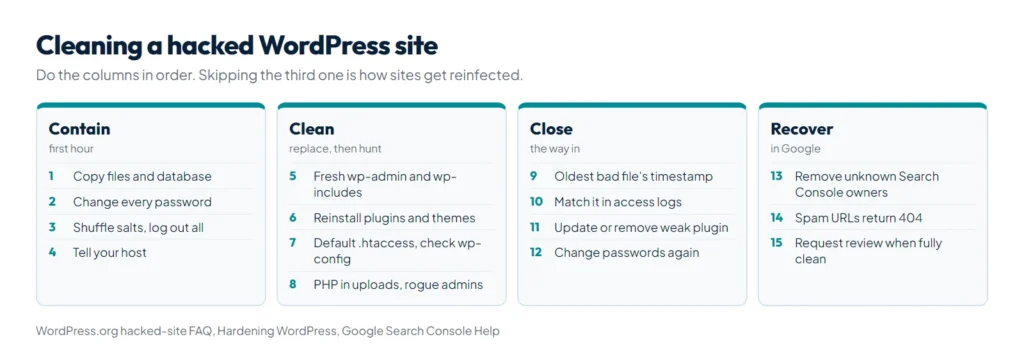
- Do not start deleting. Write down what you see, when you noticed it and what changed recently, such as a new plugin or theme edit. WordPress.org calls this the start of an incident report.
- Take a full copy of the infected site, files and database, and keep it offline. You need it to work out how the attacker got in.
- Change every password from a clean computer: hosting panel, SFTP or FTP, database, every WordPress administrator and any email account tied to the site. WordPress.org notes that infections sometimes start with a trojan on the owner’s own computer, so scan it too.
- Log everyone out by replacing the secret keys in
wp-config.php. With WP-CLI,wp config shuffle-saltsdoes it. - Tell your host. On shared hosting other sites on the account may be infected, and the host has the server logs you will need.
- Put up a maintenance page if the site is redirecting visitors or runs a checkout, so customers are not harmed while you clean.
How do you clean a hacked WordPress site, step by step?
A clean backup from before the hack is the fastest route, but only if you are sure it predates the infection, and only together with the later steps that close the hole. Otherwise, clean in this order.
1. Replace WordPress core
Download the same WordPress version you run, delete wp-admin and wp-includes, and upload fresh copies. Delete and upload rather than overwrite, because hacks add new files and overwriting leaves them in place. WordPress.org also advises against the dashboard’s reinstall button for this reason. Then check the root files:
wp core verify-checksums --include-root
wp plugin verify-checksums --all
The first compares core files with WordPress.org’s checksums and warns about unexpected files in the root. The second does the same for plugins hosted on WordPress.org.
2. Reinstall every plugin and theme
Delete each plugin and theme folder and upload a fresh copy from WordPress.org or the developer’s site. Delete anything you do not use. Never reinstall a “nulled” or pirated premium plugin; get a licensed copy from the developer.
3. Check wp-config.php and .htaccess
Compare wp-config.php with a clean sample line by line, looking for include lines, eval or long encoded strings. Replace the root .htaccess with the WordPress default, and look for extra .htaccess files in other folders, which WordPress.org lists as a common hiding place:
# BEGIN WordPress
RewriteEngine On
RewriteRule .* - [E=HTTP_AUTHORIZATION:%{HTTP:Authorization}]
RewriteBase /
RewriteRule ^index\.php$ - [L]
RewriteCond %{REQUEST_FILENAME} !-f
RewriteCond %{REQUEST_FILENAME} !-d
RewriteRule . /index.php [L]
# END WordPress
4. Search uploads and other hiding places
The uploads folder should hold media, not code. Any PHP file there is suspect. Also check wp-content/mu-plugins, which loads automatically, and recently changed PHP files anywhere:
find wp-content/uploads -name "*.php"
find . -name "*.php" -mtime -14
Look inside suspicious files for eval(, base64_decode(, gzinflate( or long blocks of scrambled text. Some legitimate plugins use these functions, so judge them in context, not by keyword alone.
5. Clean the database
- Run
wp user list --role=administratorand delete admins you do not know. - Check
siteurlandhomein the options table, and the admin email under Settings > General. - Search posts, pages and widgets for injected
<script>tags and hidden links. - Run
wp cron event listand look for scheduled tasks you do not recognize.
6. Scan again, then change passwords again
Run an application scanner and a remote scanner, since WordPress.org notes that each sees different things. Once the site is clean, change every password a second time, because the first change happened while the attacker may still have had a way in. If a removed file leaves the site showing a fatal error, our guide to the WordPress critical error shows how to trace it.
How did the hacker get in?
Cleaning without this step is how sites get reinfected. Google’s help page warns that if you do not fix the vulnerability, the site is likely to be infected again. Start from the oldest malicious file: note its modification time, then search the web server access log for requests at that minute. Download the logs early, because hosts do not keep them forever.
| Way in | Evidence to look for | How to close it |
|---|---|---|
| Outdated plugin or theme with a known hole | POST requests to that plugin’s files around the infection time; a public advisory for your version | Update it, or remove it if it is abandoned |
| Stolen or weak admin password | Logins to wp-login.php from unfamiliar IP addresses; a new admin created at that time | Unique passwords and two-factor login for every admin |
| Stolen hosting or FTP password | Files changed with no matching web request; FTP log entries | Scan your computer, use SFTP only, new passwords |
| Nulled theme or plugin | Malicious code present since the day it was installed | Replace with a licensed copy |
| Another site on the same hosting account | Other sites in the same account are infected too | Clean every site, or give each its own account |
WordPress.org’s hardening guide adds two changes worth making now: add define( 'DISALLOW_FILE_EDIT', true ); to stop code edits from the dashboard, and set wp-config.php permissions to 400 or 440.
How do you remove Google’s hacked warning?
- Check Search Console owners. Attackers sometimes add themselves as verified owners. Google’s guide to the Japanese keyword hack says to revoke unknown owners at once and remove their verification token, often an HTML file in your root folder.
- Read the Security issues report. It lists the problem type, such as code injection, content injection or URL injection, with sample URLs.
- Make spam URLs return 404 or 410 and confirm with URL Inspection that Googlebot sees the clean page.
- Request a review only when the whole site is clean. Google’s Security issues report help says fixing only some pages earns no partial return, and a good request explains the problem, the steps you took and the result.
- Wait for the decision. Google says reviews for hacked content and malware take from a few days to a few weeks, and you should not resubmit before you get an answer.
Should you clean it yourself or get help?
A small brochure site with a recent clean backup and a clear symptom is a reasonable do-it-yourself job. Get help if the site takes payments or holds customer data, if it was reinfected after cleaning, if your host suspended it, or if you cannot find how the attacker got in. Our website development team can clean the site and close the hole.
A scanner makes the hunt faster. WP Toolkit Studio compares WordPress core files, and plugins and themes hosted on WordPress.org, byte for byte with official checksums. It also matches known malware signatures, analyzes what obfuscated code actually does, scans the database and watches critical site settings. It quarantines instead of deleting, removes known malicious database entries for confirmed malware families, and repairs core, plugin and theme files by reinstalling the official package. Badly compromised sites may still need a manual review.
How do you stop it happening again?
- Close the hole you found, and keep plugins and themes updated. If an update breaks something, our free WordPress plugin conflict checker helps find the plugin at fault.
- Turn on two-factor login for every administrator.
- Watch for changed and added PHP files, which the hardening guide recommends.
- Keep backups off the server, so the next restore point is clean and within reach.
WP Toolkit Studio covers these in one plugin: a firewall that starts in learning mode before you switch it to block mode, login protection with two-factor authentication, vulnerability checks with a free WPScan API key, and backups to local storage, Nextcloud, S3, Google Drive, Dropbox, OneDrive, FTP or FTPS, and SFTP. If you are moving to a better host after a hack, our guide to WordPress hosting in Pakistan lists what to check.
Summary
When a WordPress site is hacked, copy it first, change every password and log everyone out, then replace core, plugins and themes with clean copies and search uploads, .htaccess, wp-config.php and the database for what remains. Find the way in from file times and server logs and close it, change passwords again, then request a review in Search Console’s Security issues report. WP Toolkit Studio can scan, quarantine and repair files and keep off-server backups so the next recovery is quicker.
References
- FAQ My site was hacked, WordPress.org
- Hardening WordPress, WordPress Developer Resources
- Security issues report, Search Console Help
- “This site may be hacked” message, Google Search Help
- Fix the Japanese keyword hack, web.dev (Google)
- wp core verify-checksums, WP-CLI documentation