
On this page
- Why do WordPress sites get hacked?
- The WordPress security checklist at a glance
- Updates and plugins (steps 1 to 6)
- Logins and users (steps 7 to 12)
- Server, files and database (steps 13 to 18)
- Firewall and malware scanning (steps 19 to 21)
- Backups and monitoring (steps 22 to 25)
- What should you do if your WordPress site is hacked?
- Summary
- References
To secure a WordPress website, keep WordPress, plugins and themes updated, delete what you do not use, protect every login with a strong password and two-factor authentication, lock down files and the server, add a firewall and malware scanning, and keep tested backups off the server. The checklist below breaks that into 25 steps you can work through in an afternoon, and most of them cost nothing.
The steps follow the official Hardening WordPress guide on WordPress.org and the latest yearly vulnerability report from Patchstack. We build and maintain WordPress sites for businesses in Pakistan, and we make our own WordPress security plugin, WP Toolkit Studio, so this is the same list we run on client sites.
Why do WordPress sites get hacked?
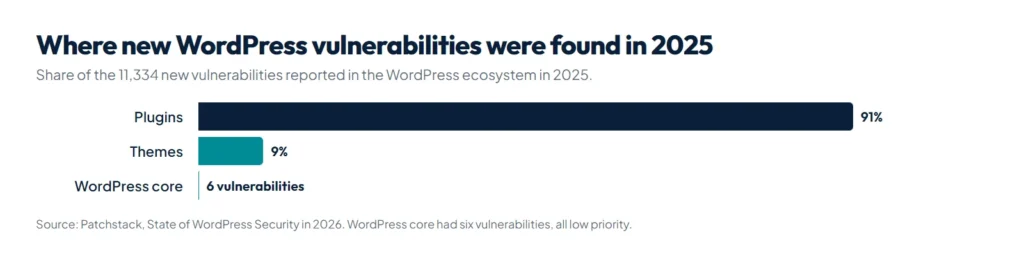
Most WordPress sites are not hacked through WordPress itself. They are hacked through a plugin or theme with a known hole, a weak password, or the hosting account. The numbers from Patchstack’s State of WordPress Security in 2026 report show where the risk sits:
- 11,334 new vulnerabilities were found in the WordPress ecosystem in 2025, 42% more than in 2024.
- 91% were in plugins and 9% in themes. WordPress core had only six, and all were low priority.
- 46% had no fix from the developer by the time they were made public, often because the plugin had been abandoned.
- For the most heavily attacked vulnerabilities, the median time to mass exploitation was 5 hours.
The WordPress hardening guide makes the same point: your host is responsible for the server, but the site you install on it, with its plugins, themes and users, is your responsibility.
The WordPress security checklist at a glance
| Area | Steps | How often |
|---|---|---|
| Updates and plugins | 1 to 6 | Weekly, or automatic |
| Logins and users | 7 to 12 | Once, then whenever staff change |
| Server, files and database | 13 to 18 | Once, then after a host move |
| Firewall and scanning | 19 to 21 | Always on |
| Backups and monitoring | 22 to 25 | Daily or weekly, tested monthly |
Updates and plugins (steps 1 to 6)
- Keep WordPress core updated. WordPress has installed minor security releases automatically since version 3.7. Leave that on, and install major versions within a few weeks. The hardening guide warns that older versions do not get security updates.
- Update plugins and themes every week. Since WordPress 5.5 you can turn on automatic updates for each plugin and theme on the Plugins screen. Turn it on for well-maintained plugins, and take a backup before big updates to plugins that run your shop or forms.
- Delete plugins and themes you do not use. A deactivated plugin is still on the server, and its files can still be reached. Keep one default theme as a fallback and delete the rest.
- Install plugins only from WordPress.org or the original developer. Never use nulled or cracked premium plugins from resellers or download sites, which often carry hidden backdoors. Patchstack also found that 76% of the vulnerabilities reported in premium components in 2025 could be used in real attacks, so premium plugins need updates as much as free ones.
- Replace abandoned plugins. On the plugin’s WordPress.org page, check when it was last updated and which WordPress version it was tested with. A plugin with no update for a year or more is a risk, because a new hole may never be fixed.
- Check plugins against a vulnerability database. The WPScan and Patchstack databases list known holes by plugin and version, and many security plugins check your site against one of them automatically.
Logins and users (steps 7 to 12)
- Use a strong, unique password for every account. The hardening guide says to avoid anything based on your name, username, company or website name. A password manager makes long random passwords easy.
- Turn on two-factor authentication for every administrator and editor, with an authenticator app. A stolen password alone is then not enough to log in.
- Do not use admin as a username. Bots try admin and webmaster first. Create a new administrator with a different name, log in as it, and delete the old account, giving its posts to the new one.
- Limit login attempts. Brute-force bots guess thousands of passwords. Lock out an IP address after a few failed logins, with a security plugin or at the server.
- Give each person the lowest role they need. WordPress has Administrator, Editor, Author, Contributor and Subscriber roles. A content writer needs Author, not Administrator.
- Remove old accounts. Delete or downgrade accounts for former staff, old developers and agencies as soon as the work ends. Review the Users screen every few months.
If you hire someone to build or fix your site, give them their own account and remove it afterwards instead of sharing yours. Our guide on how to choose a website developer covers what else to agree on before work starts.
Server, files and database (steps 13 to 18)
- Use HTTPS on the whole site. Most hosts in Pakistan include a free SSL certificate. HTTPS encrypts logins and form data between the visitor and your server.
- Use SFTP, not plain FTP. Plain FTP sends your password unencrypted. Ask your host for SFTP or SSH access.
- Set safe file permissions. The hardening guide recommends 755 for folders and 644 for files, writable only by your own user account, and 400 or 440 for wp-config.php.
- Turn off the theme and plugin file editor. The editor in the dashboard lets anyone with an admin login run PHP code, and it is often the first thing an attacker uses. Add
define( 'DISALLOW_FILE_EDIT', true );to wp-config.php. - Keep the server software current. Ask your host to run a PHP version that still gets security fixes and current versions of the web server and database. On shared hosting, a hacked site on the same server can affect yours, so ask the host what isolation they use.
- Give each site its own database and database user. If one site on the account is broken into, a separate database keeps the others out of reach.
Choosing a host is part of security. Our guide to website prices in Pakistan lists typical domain and hosting costs.
Firewall and malware scanning (steps 19 to 21)
- Add a web application firewall. A firewall filters bad requests before they reach WordPress. It can run as a WordPress plugin, as a server firewall such as ModSecurity, or as a cloud service in front of your site that also works as a CDN. Do not rely on your host alone: in a large test of popular hosting companies, Patchstack found that only 26% of vulnerability attacks were blocked.
- Scan for malware and changed files. A scanner compares WordPress core files, and plugins from WordPress.org, with the official copies. If you have SSH access, the WP-CLI command
wp core verify-checksumsdoes the same check for core. - Run one security plugin, not several. Two firewalls or two sets of login rules can block each other and lock you out. If something breaks after you add one, our free WordPress plugin conflict checker walks you through finding the cause.
Backups and monitoring (steps 22 to 25)
- Back up files and the database on a schedule. Daily for an online store or a site that changes daily, weekly for a brochure site.
- Keep backups off the server and keep several versions. A backup on the same hosting account can be lost with the site. Store copies in cloud storage, and keep a few weeks of them, because a hack is often found days after it happened.
- Test a restore. Restore a backup to a staging copy now and then. A backup you have never restored is a guess.
- Watch for warning signs. Add your site to Google Search Console, which emails you when Google finds hacked content and lists it in the Security issues report. Keep an activity log of logins and changes, and use an uptime monitor.
Our plugin, WP Toolkit Studio, covers steps 8, 10, 19, 20, 22 and 23 in one place: a firewall that starts in learning mode, a malware and file integrity scanner, login protection with two-factor authentication, and backups to cloud storage such as Google Drive, Dropbox, OneDrive or S3, with a full backup before any automatic update. Plans start at PKR 2,200 a month.
What should you do if your WordPress site is hacked?
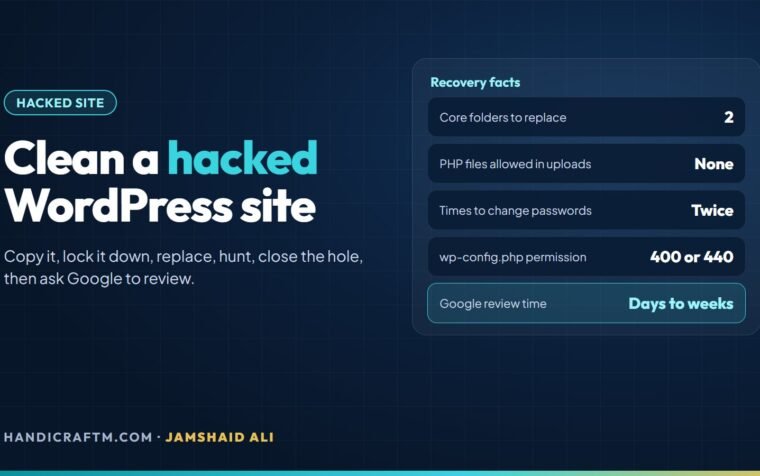
- Do not delete everything at once. Take a copy of the files and database as they are, so you or your developer can see how the attacker got in.
- Change every password: WordPress users, the hosting account, SFTP, the database and email accounts linked to the site.
- Remove admin users you did not create, and check that the site email address in Settings is still yours.
- Restore a clean backup from before the hack, or reinstall WordPress core, plugins and themes from fresh official copies, and keep only your uploads and content.
- Find and close the hole. Update or remove the plugin or theme that let the attacker in, then scan the site again.
- Clean up search results. If Google has flagged the site, fix it and request a review in the Security issues report in Search Console.
For every step in detail, including how to find the way in and get a Google warning removed, see our guide to fixing a hacked WordPress site.
Badly infected sites, or stores with customer data, are worth handing to someone who cleans hacked sites for a living. Ask our website development team if you need help.
Summary
A WordPress security checklist comes down to five habits: keep everything updated and remove what you do not use, protect every login with a strong password and two-factor authentication, lock down files and the server, put a firewall and a scanner in front of the site, and keep tested backups away from the server. With 91% of new WordPress vulnerabilities in plugins and attacks starting within hours of a hole becoming public, updates and backups matter most. If your site also feels slow, our WordPress speed optimization guide is a good next step.
References
- Hardening WordPress, Advanced Administration Handbook, WordPress.org
- State of WordPress Security in 2026, Patchstack
- Roles and Capabilities, WordPress.org
- wp core verify-checksums, WP-CLI documentation
- Security issues report, Search Console Help