
On this page
- What does “There has been a critical error on this website” mean?
- Which version of the message are you seeing?
- What causes a critical error in WordPress?
- What is the “Your Site is Experiencing a Technical Issue” email?
- How do you find the cause with the debug log?
- How do you fix the critical error, step by step?
- Is the white screen of death the same problem?
- How do you stop it happening again?
- Summary
- References
“There has been a critical error on this website” is the message WordPress shows when a PHP fatal error stops a page from loading. The cause is usually a plugin, the theme, a PHP version change or a memory limit, and you can find out which from the recovery mode email or the debug log, then switch that one thing off. Below: what each version of the message means, how to read the error and the order to try fixes in.
We build and maintain WordPress sites for businesses in Pakistan, and we make WP Toolkit Studio, a WordPress security and maintenance plugin, plus a free plugin conflict finder. The message texts and behavior below come from WordPress core’s source code and WordPress.org documentation.
What does “There has been a critical error on this website” mean?
It means PHP hit a fatal error and could not finish building the page. Since WordPress 5.2, WordPress runs a fatal error handler with a recovery mode that catches these errors and shows this message instead of a blank page. The page is sent with an HTTP 500 status code.
Only fatal errors trigger it. In core’s handler these are the PHP error types E_ERROR, E_PARSE, E_USER_ERROR, E_COMPILE_ERROR and E_RECOVERABLE_ERROR. Warnings and notices do not. Every version ends with the link “Learn more about troubleshooting WordPress.”, which goes to a general WordPress.org page and says nothing about your site.
Which version of the message are you seeing?
WordPress has four versions of the message, all set in class-wp-fatal-error-handler.php. The wording tells you where the error happened.
| What the screen says | Where you see it | What it tells you |
|---|---|---|
| There has been a critical error on this website. | Public pages | The error happened on the front end. No email is sent from a public page. |
| … Please check your site admin email inbox for instructions. | wp-admin or the login page | Recovery mode is ready. If a plugin or theme caused the error, an email with a recovery link was sent, or was already sent in the last day. |
| … Please reach out to your site administrator … | Multisite networks | Recovery mode does not run on multisite. Use the debug log instead. |
| … putting it in recovery mode. Please check the Themes and Plugins screens … | Inside recovery mode | The broken plugin or theme is paused for your login only. Open Plugins or Themes to deal with it. |
The “check your inbox” version appears on admin pages even when no email was actually sent. The email section explains why.
What causes a critical error in WordPress?
The usual causes are:
- A plugin update or a new plugin with a bug, or one that needs a newer PHP or WordPress version.
- A PHP version change in the hosting panel that an older plugin or theme does not support.
- Two plugins clashing, for example both declaring the same function name.
- An edit to the theme, such as a missing semicolon in
functions.php, which PHP reports as a parse error. - Running out of memory. WordPress tries to set PHP memory to 40MB on a single site and 64MB on multisite by default, which a page builder or WooCommerce store can exceed.
- Missing or damaged files after an update that stopped halfway.
- Malware that injected broken code. If you also see spam or redirects, read our guide on what to do when a WordPress site is hacked.
The error line itself usually tells you which cause it is:
| Text in the error | Likely cause | First fix |
|---|---|---|
| Call to undefined function | Code depends on a plugin that is off, or on a PHP function that was removed | Update the plugin or theme, or turn it off |
| Cannot redeclare | Two plugins, or a plugin and the theme, use the same function name | Turn one of them off |
| Allowed memory size of … bytes exhausted | PHP ran out of memory | Raise WP_MEMORY_LIMIT, or ask the host to raise memory_limit |
| syntax error, unexpected | A typo in a file someone edited | Undo the edit or restore the file |
| Failed opening required | A file is missing | Reinstall that plugin, theme or WordPress version |
| Uncaught TypeError or ArgumentCountError | Code not ready for your PHP version | Update the plugin, or test on the previous PHP version |
What is the “Your Site is Experiencing a Technical Issue” email?
It is the recovery mode email. WordPress sends it to the administration email address under Settings > General, with the subject “[Your site name] Your Site is Experiencing a Technical Issue”. It names the plugin or theme, the page where the error happened and the file and line number, and gives you a secret login link.
The link puts your browser into recovery mode. You log in as normal, and the broken plugin or theme is paused only for you, so the dashboard loads. Visitors keep seeing the error until you deactivate or replace it. Then click Exit Recovery Mode in the admin bar.
Many site owners never receive this email. WordPress core’s recovery email code and the recovery mode class show why:
- It is only sent when the failing file is inside
wp-content/pluginsor a themes folder. Errors in WordPress core files or must-use plugins send nothing. - It is only sent when the error happens on an admin page or the login page. A crash that only hits public pages sends nothing until someone opens wp-admin.
- By default it is sent at most once a day, and the link expires after the same period.
- It goes to the admin email, often an old developer’s inbox, and many shared hosts do not deliver WordPress email reliably without SMTP.
- Multisite networks, and sites with
WP_DISABLE_FATAL_ERROR_HANDLERset to true, do not use recovery mode at all.
To send it to an inbox you read, add define( 'RECOVERY_MODE_EMAIL', 'you@example.com' ); to wp-config.php. Core checks this constant before the admin email.
How do you find the cause with the debug log?
With no email, the debug log gives you the same details. WordPress.org’s debugging guide explains each setting. Open wp-config.php in File Manager or over SFTP and add these lines above “That’s all, stop editing!”:
define( 'WP_DEBUG', true );
define( 'WP_DEBUG_LOG', true );
define( 'WP_DEBUG_DISPLAY', false );
Load the broken page again, open wp-content/debug.log and find the line starting PHP Fatal error. Its file path names the culprit:
PHP Fatal error: Uncaught Error: Call to undefined function get_field() in /home/user/public_html/wp-content/themes/shop-child/functions.php:58The folder after wp-content/themes/ is shop-child, so the child theme is the problem: it calls a function from a plugin that is no longer active. A path through wp-content/plugins/folder-name/ points to that plugin. WordPress uses the same path logic for the recovery email.
If you would rather not read paths, paste the error into our free WordPress plugin conflict finder. Its “I have an error message” tab accepts the text from the screen, the recovery email, debug.log, your host’s PHP error log or the browser console, reads the file paths and names the plugin or theme behind the error.
Afterwards, set WP_DEBUG back to false and delete debug.log. WordPress.org advises against debug tools on live sites, and the log sits in a public folder.
How do you fix the critical error, step by step?
Work through these in order and test after each step. Take a backup first if you can still reach your hosting panel.
- Think about what changed last: an update, a new plugin, a theme edit or a PHP switch.
- Use the recovery email if you have it. Click the link, log in and deactivate the plugin it names, then update or replace it.
- Turn on the debug log as shown above and read the file path.
- Turn off the named plugin without the dashboard. In
wp-content/plugins, rename its folder, for exampleexample-slidertoexample-slider-off. WordPress cannot load it under the new name. - If you do not know which plugin it is, turn them all off. Rename
wp-content/pluginstoplugins-off. If the site comes back, open the Plugins screen once so WordPress deactivates them, rename the folder back and reactivate plugins one at a time. The conflict finder’s guided search tells you which plugins to switch off each round and keeps the ones you need, such as WooCommerce, on. - Rule out the theme. Rename your active theme’s folder in
wp-content/themes. WordPress falls back to a default theme such as Twenty Twenty-Five if one is installed. - Undo a PHP change. If the error started after a PHP switch, switch back for now, update the plugin or theme that failed, then move forward again.
- Raise the memory limit if the log says memory was exhausted, for example
define( 'WP_MEMORY_LIMIT', '256M' );inwp-config.php. The host’s PHPmemory_limitcaps this. - Restore a backup from before the problem if none of the above works.
- Clear every cache and test in a private window before judging a fix.
If you have SSH access, WP-CLI can do steps 4 and 5 even when the site is broken, because these commands skip loading plugins and themes:
wp plugin list --status=active --skip-plugins --skip-themes
wp plugin deactivate example-slider --skip-plugins --skip-themes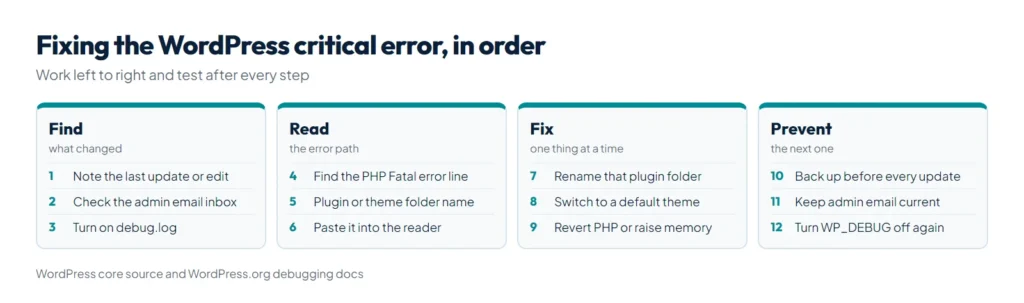
Is the white screen of death the same problem?
Usually, yes. Before WordPress 5.2, a fatal error often left a blank white page, which WordPress.org’s common errors guide calls the White Screen of Death and traces mainly to plugins and themes. Today you normally see the critical error message instead, but a blank or half-loaded page still happens when:
- a public page had already started sending output when the error hit, so WordPress cannot replace it with the message;
- the error is in
wp-config.phpitself, which runs before WordPress sets up its error handler; - the handler is switched off with
WP_DISABLE_FATAL_ERROR_HANDLER, or a customphp-error.phpdrop-in replaces the message.
The fix order is the same, and our guide to the WordPress white screen of death covers each blank-page case step by step. A database connection error, a “Briefly unavailable for scheduled maintenance” notice or a bare 500 error with no WordPress text are different problems, and the same WordPress.org guide covers each one.
How do you stop it happening again?
- Update plugins one at a time, with a fresh backup, on a staging copy first if your host offers one.
- Before moving to a newer PHP version, check your plugins and theme support it. Our guide to choosing WordPress hosting in Pakistan lists which PHP versions are still supported.
- Keep the admin email current and set up SMTP so the recovery email can reach you.
- Do not edit theme files from the dashboard on a live site.
- Follow the update and backup habits in our WordPress security checklist.
WP Toolkit Studio helps with the update side. Its auto-updates are off by default. When you turn them on, a full backup runs before updates are applied, and you can exclude any plugin you prefer to update by hand. If a setting ever locks you out, one line in wp-config.php switches off the whole plugin.
Summary
“There has been a critical error on this website” means a PHP fatal error, usually from a plugin, a theme, a PHP version change or a memory limit. Use the recovery email or the debug log to find the plugin or theme from the file path, then rename its folder or deactivate it in recovery mode. Paste any error into our free WordPress plugin conflict finder to have it name the culprit, and let WP Toolkit Studio take a full backup before each update so the next bad update is easy to undo.
References
- Fatal Error Recovery Mode in 5.2, Make WordPress Core
- class-wp-fatal-error-handler.php, WordPress core source
- class-wp-recovery-mode-email-service.php, WordPress core source
- Debugging in WordPress, WordPress Developer Resources
- Common WordPress errors, WordPress Developer Resources
- Editing wp-config.php, WordPress Developer Resources
- How HTTP status codes affect Google’s crawlers, Google