
On this page
- Which PHP version does WordPress need in 2026?
- Which PHP versions still get security fixes?
- What did the October 2026 PHP security releases fix?
- How do you check which PHP version your site uses?
- How do you update PHP in WordPress safely?
- What breaks when you change the PHP version?
- Back up before you switch
- Summary
- References
WordPress 7.1 runs on PHP 7.4 or newer, but WordPress.org recommends PHP 8.3 or newer and the WordPress Hosting Team recommends PHP 8.4 or newer for live sites. As of October 2026, the best PHP version for WordPress is 8.4 or 8.5, as long as your theme and plugins support it. PHP 8.1 and older already get no security fixes, and PHP 8.2 loses them on 31 December 2026. Below: how to check your version, how to switch in cPanel and hPanel without breaking the site, and what usually breaks.
We build and maintain WordPress sites for businesses in Pakistan, and changing the PHP version is a routine part of that work, usually on shared cPanel or Hostinger accounts. Every version number and date below was checked on WordPress.org, php.net and the hosts’ own help pages on 24 October 2026. If you are still choosing a host, our guide to WordPress hosting in Pakistan covers the rest of the server checklist.
Which PHP version does WordPress need in 2026?
Official sources give three different numbers because each answers a different question:
| Question | Answer | Source |
|---|---|---|
| What is the minimum to run WordPress 7.1? | PHP 7.4 | Raised from 7.2.24 in WordPress 7.0 |
| What does WordPress.org recommend? | PHP 8.3 or newer | WordPress.org requirements |
| What should a live site run? | PHP 8.4 or newer | Hosting Team handbook |
| Which versions is WordPress 7.1 compatible with? | 7.4, 8.0, 8.1, 8.2, 8.3, 8.4 and 8.5 | Hosting Team handbook |
| Can I use PHP 8.6? | Not yet, it is a release candidate | php.net |
The handbook adds that WordPress keeps PHP 7.4, 8.0 and 8.1 working for backward compatibility only, because those versions are end of life. php.net released PHP 8.6.0 RC4 on 21 October 2026 with a warning not to use it in production, and WordPress’s compatibility table does not list 8.6 yet.
Does your WordPress version support the PHP you want?
Older WordPress versions stop at older PHP versions. From WordPress core’s PHP compatibility table:
| WordPress version | Oldest PHP | Newest PHP |
|---|---|---|
| 7.0 and 7.1 | 7.4 | 8.5 |
| 6.9 | 7.2 | 8.5 |
| 6.7 and 6.8 | 7.2 | 8.4 |
| 6.6 | 7.2 | 8.3 |
| 6.4 and 6.5 | 7.0 | 8.3 |
So update WordPress first, then PHP. A site stuck on WordPress 6.6 should not move to PHP 8.4.
Which PHP versions still get security fixes?
These dates are from php.net’s supported versions page, with what we suggest for each:
| If your site runs | Security fixes until | What to do |
|---|---|---|
| PHP 7.4, 8.0 or 8.1 | Already ended | Move now, testing on staging first. 7.4 to 8.x is the biggest jump. |
| PHP 8.2 | 31 Dec 2026 | Move to 8.3 or 8.4 before the end of the year |
| PHP 8.3 | 31 Dec 2027 | Fine for now; plan 8.4 when your plugins are ready |
| PHP 8.4 | 31 Dec 2028 (active support until 31 Dec 2026) | Keep it |
| PHP 8.5 | 31 Dec 2029 (active support until 31 Dec 2027) | Keep it, and use it for new sites |
What did the October 2026 PHP security releases fix?
On 21 October 2026, php.net released PHP 8.5.12, 8.4.27, 8.3.36 and 8.2.35 to fix two critical vulnerabilities, CVE-2026-109618 and CVE-2026-109619, that can allow unauthenticated remote code execution. Its security advisory says every PHP installation serving web requests is at risk, with the highest risk for Apache with mod_php, and that PHP 8.1 and older no longer receive updates from the PHP project. On 23 October it added a note suggesting session.upload_progress.enabled=0 until the next regular bugfix release.
On shared hosting your host patches PHP, not you. Your job is to confirm it happened:
- Any host: Tools > Site Health > Info > Server shows the full version, such as 8.3.36. If yours is lower, ask your host whether the fix is applied, because some hosts and Linux distributions patch without changing the number.
- Hostinger: its help page says the fix, which it calls php2shell, is installed on every plan except VPS, sometimes without a new version number. Open Websites > Dashboard > PHP Info and check the Build Date: 21 October 2026 or later means the fix is in.
- VPS or your own server: update PHP yourself to one of the four versions above, then restart PHP.
How do you check which PHP version your site uses?
- In WordPress: Tools > Site Health > Info tab > Server > PHP version. WordPress also shows “PHP Update Required” or “PHP Update Recommended” on the Dashboard or in Site Health when your PHP is out of date.
- In cPanel: MultiPHP Manager lists each domain and its version, marked Inherited when it uses the server default.
- In hPanel: Websites > Dashboard > PHP Info.
A subfolder or subdomain can run a different version through its own .htaccess file, so check Site Health inside each WordPress install, not only the panel.
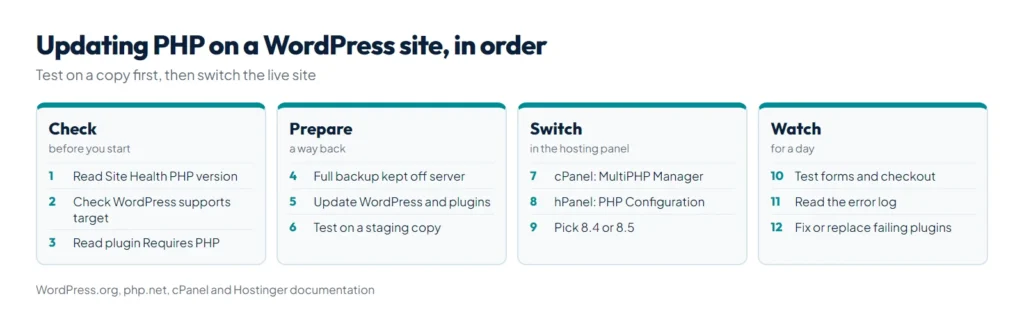
How do you update PHP in WordPress safely?
- Back up files and database and keep a copy off the server. Our WordPress backup and restore guide lists what to include.
- Update WordPress, plugins and themes first from Dashboard > Updates, as WordPress.org’s Update PHP page advises.
- Check each plugin’s PHP requirement. The PHP version on a plugin’s WordPress.org page comes from its
Requires PHPheader, which is a minimum, not a promise that it works on 8.5. WordPress refuses to activate a plugin whose minimum is higher than your PHP. Also check “Tested up to” and the changelog, and be wary of plugins with no update in a year. - Test on a staging copy if your host offers one: switch the copy, turn on the debug log and click through the site.
- Switch the live site at a quiet hour, using the panel steps below.
- Test what earns money: the home page, a post, the contact form (send a real message), cart and checkout, and wp-admin. Then read
wp-content/debug.logor your host’s error log for a day. - If something breaks, switch back where your host allows it, then update or replace the plugin that failed. If you see “There has been a critical error on this website”, the error log names the plugin or theme.
WordPress.org’s Update PHP page still suggests the PHP Compatibility Checker plugin, but that plugin’s own page now says it is no longer actively maintained, will get no further releases, including security releases, and cannot detect runtime problems. We do not rely on it. A staging test with the debug log on catches more. If an error after the switch names a plugin, paste it into our free WordPress plugin conflict finder to see which one is at fault.
Changing the PHP version in cPanel
- Open MultiPHP Manager in the Software section.
- Tick the checkbox next to your domain.
- Choose the version from the PHP Version menu and click Apply. If PHP-FPM is on, cPanel updates it to match.
cPanel’s documentation says EasyApache 4 supports PHP 7.4 and 8.1 to 8.5, but your host decides which are installed, so a missing version is not installed or not offered on your plan. Servers running CloudLinux may also show Select PHP Version under Software, where you pick the version and its extensions. If a change on one page has no effect, ask your host which page controls your domain.
Changing the PHP version in Hostinger hPanel
- Go to Websites, click Dashboard next to the site and open PHP Configuration.
- Select the version and click Update. Hostinger says it takes effect within a couple of minutes.
Two Hostinger rules matter. The version applies to every website on the hosting plan, except sites built with its AI Builder. And versions below 8.2 can no longer be selected: an existing site keeps its old version, but after you upgrade you cannot downgrade again, except within the same login session if something goes wrong. That makes the staging test even more important on Hostinger.
What breaks when you change the PHP version?
Two kinds of change cause trouble. Removed features stop the page with a fatal error. Deprecated features keep working but write “Deprecated” lines to the log, warning you about future breakage. From php.net’s migration guides:
| Upgrade | What changed in PHP | What you see in WordPress |
|---|---|---|
| 7.4 to 8.0 | create_function(), each() and money_format() removed; a number of warnings became Error exceptions; string-to-number comparisons changed | Old themes and plugins stop with a critical error |
| 8.0 to 8.1 | Passing null to non-nullable parameters of built-in functions deprecated | Many “Deprecated” lines in debug.log; the site still runs |
| 8.1 to 8.2 | Dynamic properties deprecated | More deprecation notices from older plugins |
| 8.3 to 8.4 | Implicitly nullable parameter types deprecated; the E_STRICT error level removed | Notices from older code |
| 8.4 to 8.5 | The backtick operator and casts such as (integer) deprecated; the disable_classes setting removed | Mostly notices |
If you are jumping from 7.4, expect the most work: fix the fatal errors first, then the notices.
Back up before you switch
Most PHP problems take minutes to undo if you have a recent backup and can roll the version back. WP Toolkit Studio, our WordPress security and backup plugin, sends backups to local storage, Nextcloud, Amazon S3 or S3-compatible storage, Google Drive, Dropbox, OneDrive, FTP or FTPS, and SFTP, and runs a full backup before any automatic update. It needs WordPress 5.8 and PHP 7.4 or newer. If you would rather hand the job over, our website development team can test and switch PHP for you.
Summary
WordPress 7.1 needs PHP 7.4 at least, WordPress.org recommends 8.3 or newer, and the Hosting Team recommends 8.4 or newer for live sites. PHP 8.1 and older get no security fixes and 8.2 loses them on 31 December 2026, so move to 8.4 or 8.5 once your plugins support it, and confirm you have the 21 October 2026 security releases (8.5.12, 8.4.27, 8.3.36 or 8.2.35) or your host’s patched build. Update WordPress and plugins first, test on staging, switch in MultiPHP Manager or hPanel’s PHP Configuration, and keep an off-server backup from WP Toolkit Studio so any problem is easy to undo.
References
- Requirements, WordPress.org
- Server environment, WordPress Hosting Team handbook
- PHP compatibility and WordPress versions, Make WordPress Core
- Get a faster, more secure website: update PHP today, WordPress.org
- Supported versions, php.net
- Security advisory: critical remote code execution vulnerabilities, php.net, 21 October 2026
- Backward incompatible changes in PHP 8.0, PHP manual
- MultiPHP Manager for cPanel, cPanel documentation
- How to change the PHP version of your Hostinger hosting plan, Hostinger