
On this page
- What does WordPress put in robots.txt by default?
- What does “Discourage search engines” do to robots.txt?
- What is a good robots.txt for a typical WordPress site?
- What should you never block in a WordPress robots.txt?
- How do robots.txt rules work?
- Should you block AI crawlers in robots.txt?
- What is the difference between robots.txt and noindex?
- How do you edit robots.txt in WordPress?
- Summary
- References
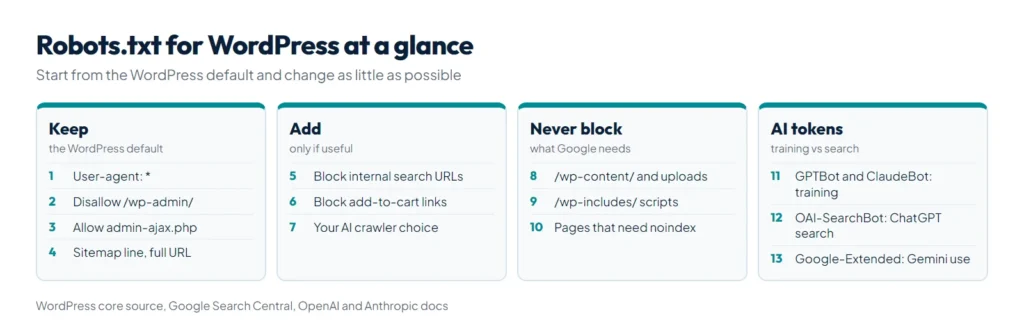
Robots.txt for WordPress usually needs only small changes, because WordPress already serves a virtual robots.txt that blocks /wp-admin/, allows admin-ajax.php and lists your sitemap. A good file keeps that default, never blocks the CSS, JavaScript or images Google needs, and states your choice on AI crawlers. This guide shows what WordPress outputs, a recommended file, what not to block and how robots.txt differs from noindex.
We build WordPress sites and do technical SEO for businesses in Pakistan, and we made a free robots.txt generator with AI crawler presets. The default output below is read from WordPress core’s source code, Google’s rules come from Google Search Central, and each AI crawler name comes from the company that runs it.
What does WordPress put in robots.txt by default?
WordPress has no robots.txt file on disk. When a crawler asks for /robots.txt, WordPress builds the answer in its do_robots() function. On a public site with WordPress’s own sitemaps turned on, the output is:
User-agent: *
Disallow: /wp-admin/
Allow: /wp-admin/admin-ajax.php

Sitemap: https://example.com/wp-sitemap.xml
Five details matter:
- The
Allowline keepsadmin-ajax.phpopen, because some themes and plugins load front-end features through it. - The
Sitemapline was added in WordPress 5.5, and it only appears when the site is public. - WordPress only serves this file when it is installed at the root of the domain. If WordPress lives in
/blog/, crawlers still readexample.com/robots.txt, which WordPress does not control. - A real
robots.txtfile in the site’s root folder replaces the virtual one. WordPress’s standard rewrite rules only pass requests for missing files to WordPress, so the server returns an existing file directly. - SEO plugins and custom code can change the output through the
robots_txtfilter, so your live file may already differ. Openyoursite.com/robots.txtto see what crawlers actually get.
What does “Discourage search engines” do to robots.txt?
Less than most people expect. Since WordPress 5.3, ticking Settings > Reading > Discourage search engines from indexing this site no longer adds Disallow: / to robots.txt. WordPress adds a noindex robots meta tag to every page instead, and drops the Sitemap line. Crawlers can still fetch pages, which is how they see the noindex. Separately, since WordPress 5.7 every site adds noindex to its internal search result pages.
Use this setting on staging copies. A staging site on a subdomain such as staging.example.com is a separate host, so it has its own robots.txt. Your main site’s file does not cover it.
What is a good robots.txt for a typical WordPress site?
For a business site or blog, start with this and change the sitemap address to yours:
User-agent: *
Disallow: /wp-admin/
Allow: /wp-admin/admin-ajax.php
Disallow: /*?s=
Disallow: /search/

Sitemap: https://example.com/wp-sitemap.xml
It is the WordPress default plus two optional lines that keep crawlers away from internal search result URLs, which have no value in Google and which WordPress already marks noindex. On a small site you can leave them out. They save crawling; they do not improve rankings. If an SEO plugin builds your sitemap, use the address it shows in its settings instead of wp-sitemap.xml.
WooCommerce stores need less than you might think. WooCommerce already adds noindex to the cart, checkout and My account pages, so there is no need to block them, and blocking them would stop Google from seeing that noindex. If your server logs show bots following add-to-cart links, add Disallow: /*add-to-cart= to the * group.
What should you never block in a WordPress robots.txt?
| Do not block | Why |
|---|---|
/wp-content/ | Themes, plugins and uploads hold the CSS, JavaScript and images Google uses to render your pages |
/wp-content/uploads/ | Your images. Blocking it keeps them out of Google Images |
/wp-includes/ | Core scripts that many themes load on public pages |
| Pages you want out of Google | A blocked page can still be indexed from links. Use noindex instead |
| Secret or private paths | Robots.txt is public, so listing a path tells everyone it exists. Use a password |
Old tutorials often told people to block /wp-includes/ or /wp-content/plugins/. WordPress’s own default blocks neither, and Google says not to block resource files if pages are harder to understand without them.
How do robots.txt rules work?
Google’s robots.txt specification sets these rules:
| Rule | What it means |
|---|---|
| Location | Root of the host only. Each subdomain, protocol and port needs its own file |
| Fields Google supports | user-agent, allow, disallow and sitemap. Google ignores crawl-delay |
| Groups | A crawler follows only the most specific group that matches its name and ignores the rest, including the * group |
| Conflicts | The longest matching rule wins. On a tie, Google uses the least restrictive rule |
| Wildcards | * matches any characters, $ marks the end of the URL |
| Case | Paths are case-sensitive. Field names are not |
| Size | Google reads the first 500 KiB |
| Caching | Usually cached for up to 24 hours |
| Errors | A 4xx (except 429) means no restrictions. A 5xx stops Google crawling for 12 hours, then it uses the last good copy for up to 30 days |
The group rule catches people out. If you add a User-agent: Googlebot group for one path, Googlebot stops following your User-agent: * rules, so repeat any rules it still needs inside that group.
Should you block AI crawlers in robots.txt?
That depends on whether you want to appear in AI answers. OpenAI and Anthropic run separate crawlers for model training and for search, and Google offers a separate token for AI use, so you can say no to training and yes to search:
| Token | Company | What it does | If you block it |
|---|---|---|---|
| GPTBot | OpenAI | Collects content that may train OpenAI’s models | Your content should not be used for training |
| OAI-SearchBot | OpenAI | Finds pages for ChatGPT search | Your pages are not shown in ChatGPT search answers, though they can still appear as plain navigational links |
| ChatGPT-User | OpenAI | Visits a page when a user asks ChatGPT to | OpenAI says robots.txt rules may not apply |
| ClaudeBot | Anthropic | Collects content that could help train Claude | Opts you out of training |
| Claude-SearchBot | Anthropic | Improves Claude’s search results | May reduce your visibility in Claude’s answers |
| Claude-User | Anthropic | Fetches pages when Claude users ask questions | Claude cannot retrieve your pages for users |
| Google-Extended | Controls use of your content for Gemini training and grounding | No effect on Google Search inclusion or ranking |
The OpenAI rows come from OpenAI’s crawler documentation and the Anthropic rows from Anthropic’s help center. To block training but stay visible in AI search, use:
User-agent: GPTBot
Disallow: /

User-agent: ClaudeBot
Disallow: /

User-agent: Google-Extended
Disallow: /

User-agent: *
Disallow: /wp-admin/
Allow: /wp-admin/admin-ajax.php

Sitemap: https://example.com/wp-sitemap.xml
A business that wants customers to find it through ChatGPT or Claude should not block OAI-SearchBot, Claude-SearchBot or Claude-User. Our guide on how to rank in ChatGPT explains why that visibility matters, and an llms.txt file is a separate, optional signal for AI tools. Remember that robots.txt is a request. These companies say their crawlers follow it, but it cannot force any crawler to obey.
What is the difference between robots.txt and noindex?
Robots.txt controls crawling. Noindex controls indexing. Mixing them up is a common mistake.
| robots.txt Disallow | noindex | |
|---|---|---|
| What it does | Asks crawlers not to fetch a URL | Tells search engines not to show a page in results |
| Where it lives | One file at the site root | A meta tag in the page, or an X-Robots-Tag HTTP header |
| Can the URL still appear in Google? | Yes, without a description, if other pages link to it | No, once Google recrawls the page |
| Page must be crawlable? | No | Yes |
| Best for | Admin areas, endless search and filter URLs | Thank-you pages, thin archives, staging sites |
Google’s noindex documentation states that noindex only works if the page is not blocked by robots.txt. So to get a page out of Google, remove any Disallow rule that covers it, add noindex and let Google recrawl it.
How do you edit robots.txt in WordPress?
- With your SEO plugin. Many SEO plugins include a robots.txt editor that changes the virtual file.
- With a real file. Build the file, then upload it with File Manager or SFTP to your site’s root folder, the one that holds
wp-adminandwp-content. It replaces WordPress’s virtual file, so plugin editors stop affecting what crawlers see. - With code. A few lines in a small custom plugin add rules to the virtual file:
add_filter( 'robots_txt', function ( $output, $public ) {
    if ( $public ) {
        $output .= "\nUser-agent: GPTBot\nDisallow: /\n";
    }
    return $output;
}, 10, 2 );
Our free robots.txt generator builds the file for you. It has three presets (allow all crawlers, block AI training only, block all AI bots), a WordPress option that adds the /wp-admin/ defaults, fields for extra paths and your sitemap, and a tester that checks any URL against the rules as RFC 9309 describes. After you publish, open yoursite.com/robots.txt to confirm it, then check the robots.txt report in Google Search Console, where you can request a recrawl after an important change. It is one step in our SEO checklist.
Summary
WordPress already serves a sensible robots.txt that blocks /wp-admin/, allows admin-ajax.php and lists the sitemap. Keep that, add optional lines for internal search, never block wp-content, wp-includes or CSS and JavaScript, and use noindex rather than Disallow for pages you want out of Google. Decide on AI crawlers separately for training and for search. Build and test your file with our free robots.txt generator, then work through the rest of our SEO checklist.
References
- functions.php, do_robots(), WordPress core source
- How Google interprets the robots.txt specification, Google Search Central
- Introduction to robots.txt, Google Search Central
- Block search indexing with noindex, Google Search Central
- Overview of OpenAI crawlers, OpenAI
- Does Anthropic crawl data from the web, and how can site owners block the crawler?, Anthropic
- Google’s common crawlers (Google-Extended), Google