
On this page
To accept JazzCash and Easypaisa on WooCommerce, open a merchant account with each (or with one payment aggregator that offers both), get your API credentials, install the gateway’s WooCommerce plugin, test everything in the sandbox, and switch to live credentials once the merchant team approves your store. Through the JazzCash gateway, customers can pay by card, mobile account or over-the-counter voucher, and your store learns about each payment through a return URL and an IPN, an instant payment notification sent from server to server.
The paperwork usually takes longer than the code. This guide follows JazzCash’s own sandbox documentation and covers what a WooCommerce store needs to pass merchant review, the steps in order, and the errors that leave orders stuck on “Pending payment”.
What do you need before you start?
- A merchant account. A personal wallet is not enough: payment gateways verify the business and settle payments into a bank account in its name. Ask the merchant team for their current document list.
- A live store on your own domain with HTTPS.
- Clear policy pages: refunds and returns, delivery, terms, privacy, and full contact details. Merchant reviewers usually check these before approving a website.
- Prices in PKR and the WooCommerce store currency set to PKR.
- Admin access to WordPress and, ideally, a staging copy of the store for testing.
Which way should you connect?
| JazzCash direct | Easypaisa direct | Payment aggregator | |
|---|---|---|---|
| Integrations to maintain | One per gateway | One per gateway | One for several methods |
| Payment methods | Card, JazzCash mobile account, voucher | Easypaisa wallet and the methods Easypaisa enables for you | Wallets, cards and bank accounts, depending on the provider |
| Settlement and reports | Separate | Separate | One settlement and one dashboard |
| Best for | Stores where JazzCash is the main wallet | Stores where Easypaisa is the main wallet | Stores that want every method with less upkeep |
Aggregators such as PayFast or Simpaisa offer wallets through one integration. Check which wallets, cards and banks each one supports today, and compare their fees.
How does the JazzCash integration work?
JazzCash’s sandbox documentation describes several ways to connect: HTTP POST page redirection, a hosted payment checkout, APIs and a mobile SDK, plus ready-made plugins. It supports card payments with 3-D Secure, mobile account payments and over-the-counter vouchers, signs requests with a secure hash, and posts results back through an IPN webhook.
For most WooCommerce stores the redirect or hosted checkout is the right choice. As JazzCash puts it, with hosted checkout “the merchant does not need to save any customer’s information”, which keeps card data off your server entirely.
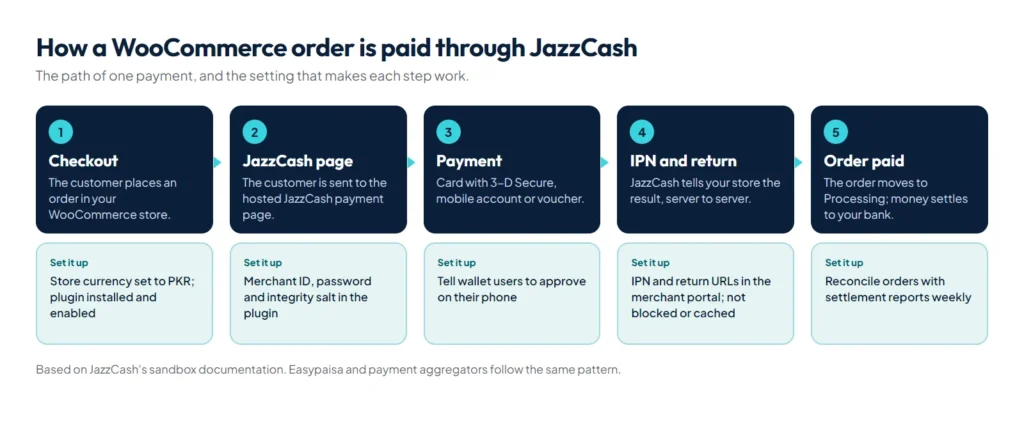
Step by step: adding JazzCash to WooCommerce
- Create a sandbox account on the JazzCash sandbox portal, enter your store’s return URL and generate test credentials: merchant ID, password and integrity salt.
- Install the plugin on a staging copy of your store. Use a plugin listed in the gateway’s documentation, or one you have reviewed and that is actively maintained.
- Enter the sandbox credentials in WooCommerce, keep sandbox mode on, and copy the plugin’s return and IPN URLs into the JazzCash portal.
- Test every path, not just a successful card payment: a declined card, a 3-D Secure challenge, a mobile account payment, a customer who closes the page, a voucher paid later, and a refund.
- Check the order statuses after each test: paid orders should move to Processing, failed ones to Failed, and unpaid vouchers should wait on hold.
- Apply for live access by completing merchant verification with your documents and live website.
- Swap in live credentials, make one small real payment, then refund it to confirm both directions work.
- Reconcile weekly: match WooCommerce orders against the gateway’s settlement report.
Easypaisa’s merchant gateway follows the same pattern: merchant onboarding, sandbox credentials, a plugin or API integration, testing, then live keys.
Common errors and how to fix them
- Orders stuck on “Pending payment”: the IPN is not reaching your site. Check the IPN URL in the portal, and make sure your firewall, security plugin or CDN does not block or cache it.
- Hash or signature mismatch: the integrity salt or password is wrong, or sandbox and live values are mixed.
- Wrong amounts: JazzCash’s sample code sends amounts in paisa, the rupee amount multiplied by 100. A plugin that skips this charges a hundredth of the price or gets the request rejected.
- Customer paid but the order failed: the customer closed the browser before returning. Rely on the IPN, not the return page, to mark orders paid.
- Wallet payments time out: the customer has to approve the payment on their phone. Show a clear message telling them to check it.
Should you still offer cash on delivery?
Yes, for most stores in Pakistan. Offer wallets and cards next to COD rather than instead of it. To reduce refused COD parcels, confirm each COD order with a one-tap WhatsApp message before dispatch; our guide to the WhatsApp Business API in Pakistan shows how to automate that.
Summary
JazzCash payment gateway integration on WooCommerce comes down to five things: a verified merchant account, a trusted plugin, thorough sandbox testing, a working IPN, and live credentials only after a real test payment and refund. Add Easypaisa the same way, or use one aggregator for both. If you would rather have it set up and tested for you, our e-commerce team builds and connects WooCommerce stores, and our guide to the website price in Pakistan shows what a store costs.