
On this page
- How does Claude Code work?
- What can Claude Code access in your project?
- How is Claude Code different from autocomplete and chat?
- How do you install Claude Code?
- Where can you use Claude Code?
- How do sessions work?
- What can you add to Claude Code?
- Where are the official Claude Code docs?
- How do you get reliable results from Claude Code?
- Is Claude Code safe to run on your projects?
- Summary
- References
What is Claude Code? It is an agentic coding tool from Anthropic that reads your codebase, edits files, runs commands and integrates with your development tools. Instead of answering one question and waiting, it works in a loop: it gathers context, takes action and verifies the result, repeating until the task is done and asking your permission for risky steps. It runs in the terminal, in VS Code, Cursor and JetBrains IDEs, in a desktop app and in the browser, and you extend it with CLAUDE.md files, skills, subagents, hooks, MCP servers and plugins.
We use Claude Code every day. This website’s custom WordPress theme, the scripts that publish our blog posts and the browser checks we run before every deploy were built with it. This guide explains what the tool is and how its parts fit together; the rest of this series goes deep on each feature.
How does Claude Code work?
Anthropic’s architecture guide describes three phases: gather context, take action and verify results. They blend together. A question about your code may only need the first phase; a bug fix cycles through all three many times, with each tool result deciding the next step. Asked to “fix the failing tests”, Claude typically runs the suite, reads the error, searches for the relevant source files, reads them, edits the fix and runs the tests again.
Two components power the loop: the model, which reasons, and the tools, which act. Claude Code is the layer around the model that provides those tools and manages what the model sees, which Anthropic calls the agentic harness. You choose the model with /model; the docs describe Sonnet as handling most coding tasks well and Opus as stronger for complex architectural decisions.
| Tool category | What Claude can do |
|---|---|
| File operations | Read, edit, create, rename and reorganise files |
| Search | Find files by pattern, search content with regular expressions, explore a codebase |
| Execution | Run shell commands, start servers, run tests, use git |
| Web | Search the web, fetch documentation, look up error messages |
| Code intelligence | See type errors after edits, jump to definitions, find references (needs a language server plugin) |
One constraint shapes almost everything else. Anthropic’s best practices guide puts it plainly: “Claude’s context window fills up fast, and performance degrades as it fills.” Every message, file read and command output takes space, so good Claude Code habits are mostly about keeping that context focused.
What can Claude Code access in your project?
- Your files: everything in the folder where you start it and its subfolders, plus other locations with your permission.
- Your terminal: any command you could run yourself, from build tools and package managers to git and your own scripts.
- Your git state: the current branch, uncommitted changes and recent commits.
- Your instructions: CLAUDE.md files, or an AGENTS.md written for other coding agents, plus auto memory, the notes Claude saves for itself. The first 200 lines or 25KB of the memory index load in every session.
- Your extensions: the MCP servers, skills, subagents and browser tools you have set up.
Because it sees the whole project, Claude can make coordinated changes across many files and prove them with your own test commands. That is the real difference from an assistant that only sees the file in front of you.
How is Claude Code different from autocomplete and chat?
| Inline autocomplete | Chat assistant | Claude Code | |
|---|---|---|---|
| Sees | The open file | What you paste in | The whole project, the terminal and git history |
| Acts | Suggests the next lines | Writes text and code for you to copy | Edits files, runs commands, commits and opens pull requests |
| Checks its work | No | No | Runs the tests, builds and checks you give it |
| Best for | Typing faster | Questions and explanations | Multi-step tasks across a codebase |
How do you install Claude Code?
The native installer is the recommended route and updates itself in the background:
# macOS, Linux, WSL
curl -fsSL https://claude.ai/install.sh | bash

# Windows PowerShell
irm https://claude.ai/install.ps1 | iex

# Homebrew (does not auto-update)
brew install --cask claude-code

# WinGet (does not auto-update)
winget install Anthropic.ClaudeCode
Then open a terminal in your project and run claude. It asks you to log in the first time. On native Windows, install Git for Windows as well so Claude Code can use its Bash tool. Run /init to generate a first CLAUDE.md for the project, and /doctor if anything looks wrong: it diagnoses installation and configuration problems and can fix them. The official overview lists the other install options.
Where can you use Claude Code?
| Surface | Best for |
|---|---|
| Terminal (CLI) | The full feature set: plugins, hooks, scripting, everything |
| VS Code and Cursor extension | Inline diffs, plan review and @-mentions with line ranges while you code |
| JetBrains plugin | IntelliJ, PyCharm, WebStorm and other JetBrains IDEs |
| Desktop app | Several sessions side by side, visual diff review, scheduled tasks |
| Web (claude.ai/code) and mobile | Long tasks on cloud machines, repos you don’t have locally |
| GitHub Actions and GitLab CI/CD | Responding to @claude on issues and pull requests, scheduled jobs |
| Slack | Turning a bug report in a channel into a pull request |
The loop, the tools and your CLAUDE.md files are the same everywhere. What changes is where the code runs: locally on your machine (the default), in the cloud on Anthropic-managed machines, or through Remote Control, where you use the web interface while execution and files stay on your computer.
How do sessions work?
Each conversation is saved locally as a plain-text JSONL file under ~/.claude/projects/. A new session starts with a fresh context window and none of the earlier conversation; only CLAUDE.md and auto memory carry over. To pick up where you left off, claude --continue or claude --resume reopens a session and appends to it, while --fork-session or /branch copies the history into a new session and leaves the original untouched. Sessions belong to a directory, so separate git worktrees let you run several sessions in parallel without their edits colliding.
What can you add to Claude Code?
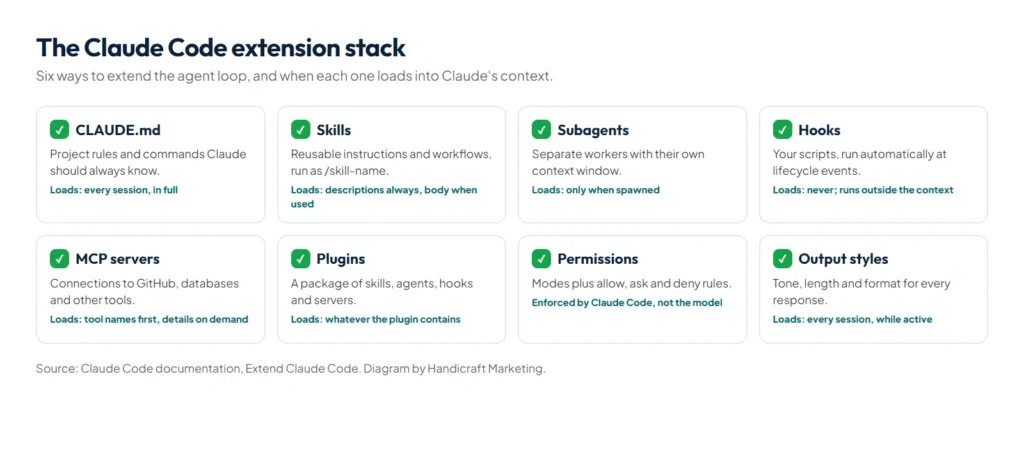
The built-in tools cover most coding work. The extension layer lets you teach Claude your project, connect it to other systems and automate the boring parts:
| Extension | What it does | When it loads |
|---|---|---|
| CLAUDE.md | Project rules and commands Claude should always know | Every session, in full |
| Skills | Reusable instructions and workflows, run as /skill-name or loaded when relevant | Descriptions always, full content when used |
| Subagents | Separate workers with their own context that return a summary | When spawned |
| Hooks | Your scripts, run automatically at events such as “after every edit” | On their event, outside Claude’s context |
| MCP servers | Connections to GitHub, databases, Notion and other tools | Tool names at start, details on demand |
| Plugins | A package of skills, agents, hooks and MCP servers you install in one step | Whatever the plugin contains |
You don’t need all of them on day one. Anthropic’s docs suggest adding each one when a trigger appears: Claude gets a convention wrong twice, so add it to CLAUDE.md; you type the same prompt for the third time, so save it as a skill; something must happen every time, so write a hook.
Where are the official Claude Code docs?
The documentation lives at code.claude.com/docs, and the source of the CLI’s issues and changelog is the anthropics/claude-code repository on GitHub (151k stars in October 2026). The pages worth bookmarking:
| You want to | Read |
|---|---|
| Get started | Overview and Quickstart |
| Work well with it | Best practices and Common workflows |
| Configure it | Settings, Memory (CLAUDE.md), Permissions |
| Extend it | Skills, Subagents, Hooks, MCP, Plugins |
| Automate it | GitHub Actions and headless mode |
| Control spend | Manage costs |
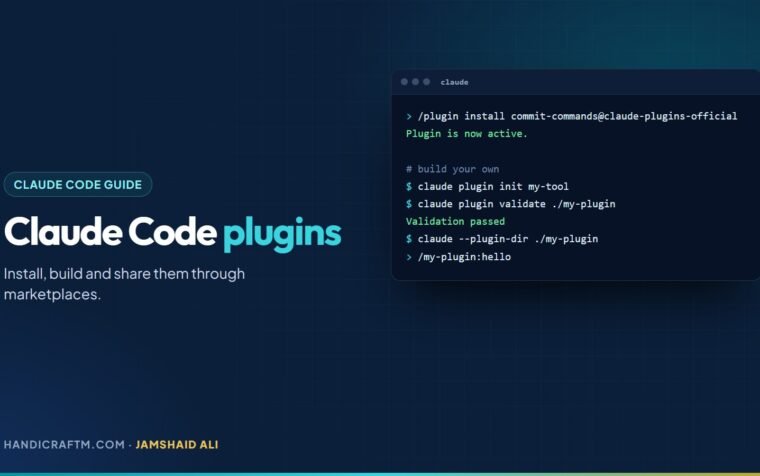
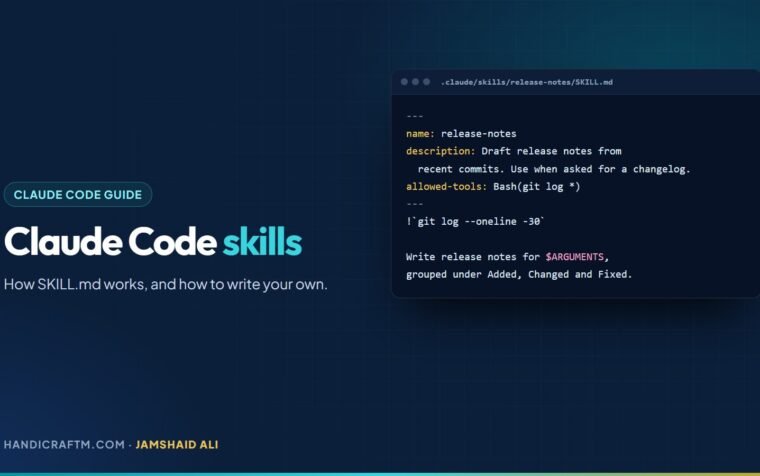
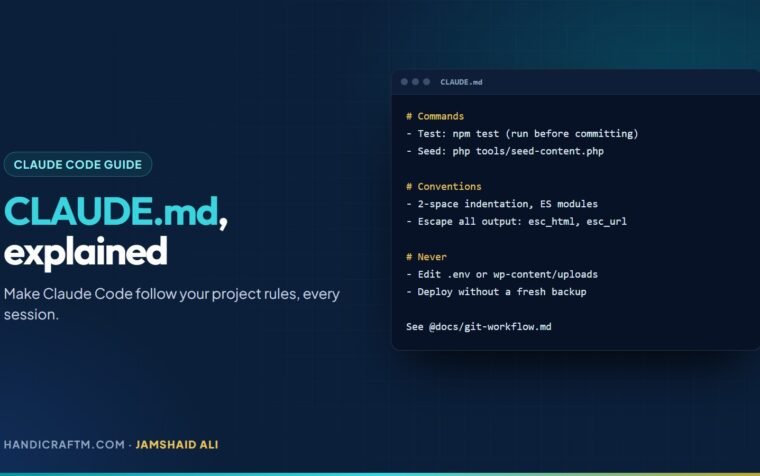
Inside a session, /help lists commands, /doctor checks your installation and /context shows what fills the context window. Our own guides go deeper on each feature, with the examples we use on real projects: CLAUDE.md, skills (with a list of the best ones), plugins, hooks, subagents, MCP, slash commands, permission modes and GitHub Actions.
How do you get reliable results from Claude Code?
Almost every best practice comes from one constraint in Anthropic’s best practices guide: “Claude’s context window fills up fast, and performance degrades as it fills.” The workflow that works: give Claude a way to verify its own work, separate exploring and planning from implementing, write specific prompts, and manage the context aggressively. This is the version we use on client projects.
Give Claude a way to verify its work
This is the biggest single lever. Without a check it can run, “looks done” is the only signal Claude has, and you become the test suite. Give it something that returns pass or fail, and it can iterate until the work is right:
| Instead of | Try |
|---|---|
| “Implement email validation” | “Write validateEmail. Test cases: user@example.com is valid, ‘invalid’ is not, user@.com is not. Run the tests after implementing.” |
| “Make the dashboard look better” | “[screenshot] Implement this design, take a screenshot of the result, list the differences and fix them.” |
| “The build is failing” | “The build fails with this error: [error]. Fix the root cause and confirm the build succeeds. Don’t suppress the error.” |
Checks do not have to be unit tests. The script that builds this blog stops with an error if any post or FAQ contains an em dash, and prints every SEO title and description length, so Claude catches style and length problems itself before anything reaches WordPress. For stricter gates, set a /goal condition, add a Stop hook that runs your tests, or have a separate reviewer subagent try to refute the result.
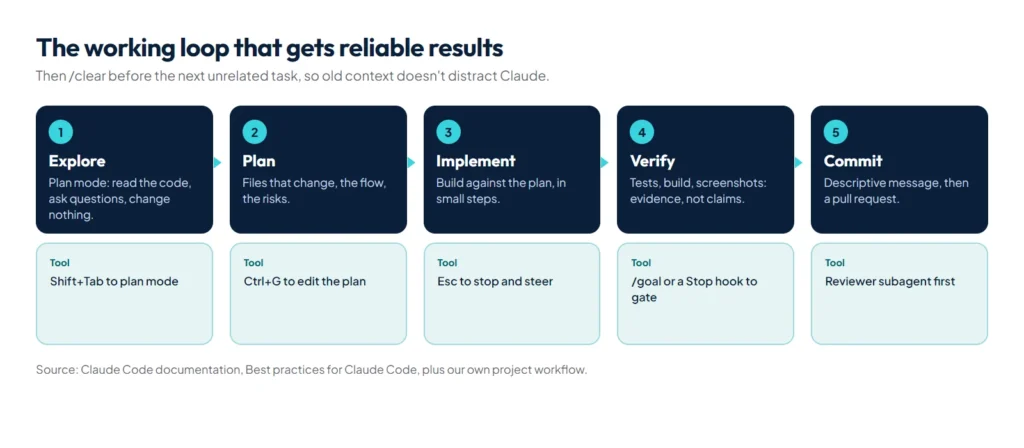
Explore, then plan, then implement, then commit
- Explore in plan mode (
Shift+Tab): “Read src/auth and explain how sessions and login work.” - Plan: “I want to add Google sign-in. Which files change? What’s the flow? Write a plan.” Press
Ctrl+Gto edit the plan yourself. - Implement: leave plan mode and let Claude build, verifying against the plan.
- Commit: “Commit with a descriptive message and open a pull request.”
Planning adds overhead, so match it to the task. Anthropic’s rule of thumb: if you could describe the diff in one sentence, skip the plan.
Write specific prompts
- Scope the task: which file, which scenario, what kind of test. “Add a test for foo.py covering the logged-out case, without mocks.”
- Point to sources: “Read ExecutionFactory’s git history and explain how its API evolved.”
- Reference existing patterns: “Follow the pattern in HotDogWidget.php to build a calendar widget.”
- Describe symptoms: what fails, where you suspect the cause, and what “fixed” looks like.
- Use rich input:
@to reference files, pasted screenshots, piped logs.
Know what fills the context, and what survives compaction
Anthropic’s architecture guide lists what the context window holds: your conversation, file contents, command outputs, CLAUDE.md, auto memory, loaded skills and system instructions. MCP tool definitions are deferred, so only their names cost space until a tool is used. Run /context to see the breakdown.
When the window nears its limit, Claude Code first clears older tool outputs, then summarises the conversation. Your requests and key code survive; detailed instructions from early in the session may not. Three habits follow:
- Put lasting rules in your project-root CLAUDE.md, which is re-read from disk after every compaction, not in an early chat message.
- Steer the summary: add a “Compact Instructions” section to CLAUDE.md, or run
/compact Focus on the API changes. - Keep giant outputs out: if one file or log is so large that the context refills right after each summary, Claude Code stops auto-compacting and shows an error rather than looping. Write big outputs to a file and read the parts you need.
Manage context aggressively
- Run
/clearbetween unrelated tasks. - Ask side questions with
/btw; the answer never enters the conversation. - Send research to subagents: “Use subagents to investigate how token refresh works.”
- Show context usage permanently with a custom status line.
If you have corrected Claude twice on the same issue, the context is full of failed attempts. Run /clear and start again with a better prompt that includes what you learned. A clean session with a sharper prompt almost always beats a long one full of corrections.
Steer and rewind instead of arguing
You don’t have to stop Claude to correct it. Type a message and press Enter while it works; the message is queued and Claude reads it as soon as its current tool calls finish. Press Esc when you want it to stop immediately.
Every prompt also creates a checkpoint. Press Esc twice or run /rewind to restore the conversation, the code or both to an earlier point. That makes risky experiments cheap: try the bold approach and rewind if it fails. Checkpoints track only edits made through Claude’s file tools, not shell commands or anything that reached a database or server, so they are not a replacement for git.
Keep CLAUDE.md lean and put hard rules in hooks
For each line in CLAUDE.md, ask whether removing it would cause mistakes; if not, cut it. A bloated file makes Claude ignore the rules that matter. Anything that must happen every time, such as formatting after edits or never touching .env, belongs in a hook or a deny rule, not in prose.
Let Claude interview you for big features
For a larger feature, start with a short description and ask Claude to interview you about implementation, interface, edge cases and trade-offs, then write a complete spec to SPEC.md. Start a fresh session to implement it. The new session has clean context and a written plan to follow, and the questions surface problems before any code exists.
Scale out once the basics work
- Parallel sessions in separate git worktrees, so edits don’t collide.
- Writer and reviewer: one session implements, a second reviews the diff in a fresh context.
/batchfor large changes split across many subagents, each in its own worktree.- Scripted fan-out for migrations:
for file in $(cat files.txt); do
  claude -p "Migrate $file from Python 2 to Python 3. Return OK or FAIL." \
    --allowedTools "Edit,Bash(git commit *)" \
    --permission-mode dontAsk
done
Test the prompt on two or three files first, then run it on the rest.
Which failure patterns should you avoid?
- The kitchen-sink session: unrelated tasks in one conversation. Clear between them.
- Correcting over and over: after two failed corrections, clear and re-prompt.
- The over-specified CLAUDE.md: prune it, or turn rules into hooks.
- Trust without verification: if you can’t verify it, don’t ship it.
- Endless exploration: “investigate” with no scope reads hundreds of files. Scope it or use a subagent.
Is Claude Code safe to run on your projects?
Two mechanisms protect you. Checkpoints: before Claude edits a file, it snapshots the current contents, so you can press Esc twice to rewind. Checkpoints are separate from git, cover file changes only, and can’t undo anything that reached a remote system such as a database, an API or a deployment. Permissions: a permission mode decides what Claude may do without asking, from Manual mode, which asks before edits and commands, to auto mode, where a classifier model reviews actions in the background and blocks risky ones. Allow, ask and deny rules refine the mode; deny rules always win and are enforced by Claude Code itself, not by the model. Plugins and hooks run with your user privileges, so review third-party ones before you install them.
Summary
Claude Code is an agent harness around Claude: it gathers context, acts with real tools and verifies the result, across your whole project, in the terminal, your IDE, the desktop app or the browser. Sessions are independent, so persistent knowledge belongs in CLAUDE.md, and the context window is the resource to protect. Work in a loop of explore, plan, implement, verify and commit, give Claude checks it can run, and clear the context between tasks. Add skills, hooks, MCP servers and plugins as real needs appear; our list of the best Claude Code skills is a good place to start. If you’d like help building software or automation with it, see our custom software development and AI automation services.
References
- Claude Code overview, Claude Code documentation
- How Claude Code works, Claude Code documentation
- Extend Claude Code, Claude Code documentation
- Best practices for Claude Code, Claude Code documentation
- Explore the context window and Common workflows, Claude Code documentation
- anthropics/claude-code, changelog and issue tracker on GitHub
- Effective context engineering for AI agents, Anthropic Engineering